
Download MovieSlider – Fast Video Slideshow Creator, Free EXE Export
Overview
MovieSlider is a lightweight Windows utility that turns any video file into a compact, self‑contained slideshow executable (EXE). When you have a large‑size clip that you want to preview or share quickly—perhaps a 128 MB short film or a lengthy tutorial—uploading the full video can be impractical. MovieSlider solves that problem by extracting representative frames and packaging them into a tiny executable that runs on any Windows PC without requiring the original software to be installed. During our tests, a 128 MB video was reduced to a 300 KB slideshow, a compression ratio of more than 400 : 1, while still preserving a clear visual summary of the content. The wizard‑style interface guides you through frame selection, output options, and final export in just a few clicks. Although the resulting slideshow is silent—background music is not yet supported—the trade‑off in file size and ease of sharing makes MovieSlider an ideal tool for developers, educators, and anyone who needs to showcase video snippets online or via email. This review covers the core features, installation steps, system compatibility, and the pros and cons you should weigh before downloading the free tool.
Key Features
- One‑click conversion of any video format (MP4, AVI, MKV, WMV, MOV, etc.) into a standalone EXE slideshow.
- Two frame‑capture modes: fixed number of evenly spaced frames or time‑interval based captures (e.g., every 2 minutes).
- Wizard‑guided workflow that eliminates the need for technical knowledge.
- Ultra‑small output size – typical reductions of 95 %+ compared to the original video.
- Portable EXE that runs on any Windows PC (no installation required on the target machine).
- Option to set custom thumbnail and window title for the generated slideshow.
- Free to download and use for personal or commercial purposes.
- Automatic update checker that notifies you when a newer version is available.
The feature set focuses on simplicity and speed. By removing unnecessary bells and whistles, MovieSlider keeps the user interface clean, which is perfect for quick previews or for embedding a visual synopsis on a website. While the lack of built‑in audio tracks might feel limiting for some, the tool’s primary goal is to shrink video footprints, not replace full‑featured video editors. Users who need sound can always pair the generated EXE with a separate audio player or embed the slideshow into a web page with background music using HTML5. Overall, the features strike a solid balance between functionality and lightweight design.
Installation, Usage & Compatibility
Installation: MovieSlider is distributed as a single installer (MovieSliderSetup.exe). The download size is under 5 MB, making it fast even on slower connections. Run the installer, accept the license agreement, and choose the default installation folder (C:\Program Files\MovieSlider). The setup completes in less than a minute, and a shortcut is added to the Start Menu for easy access.
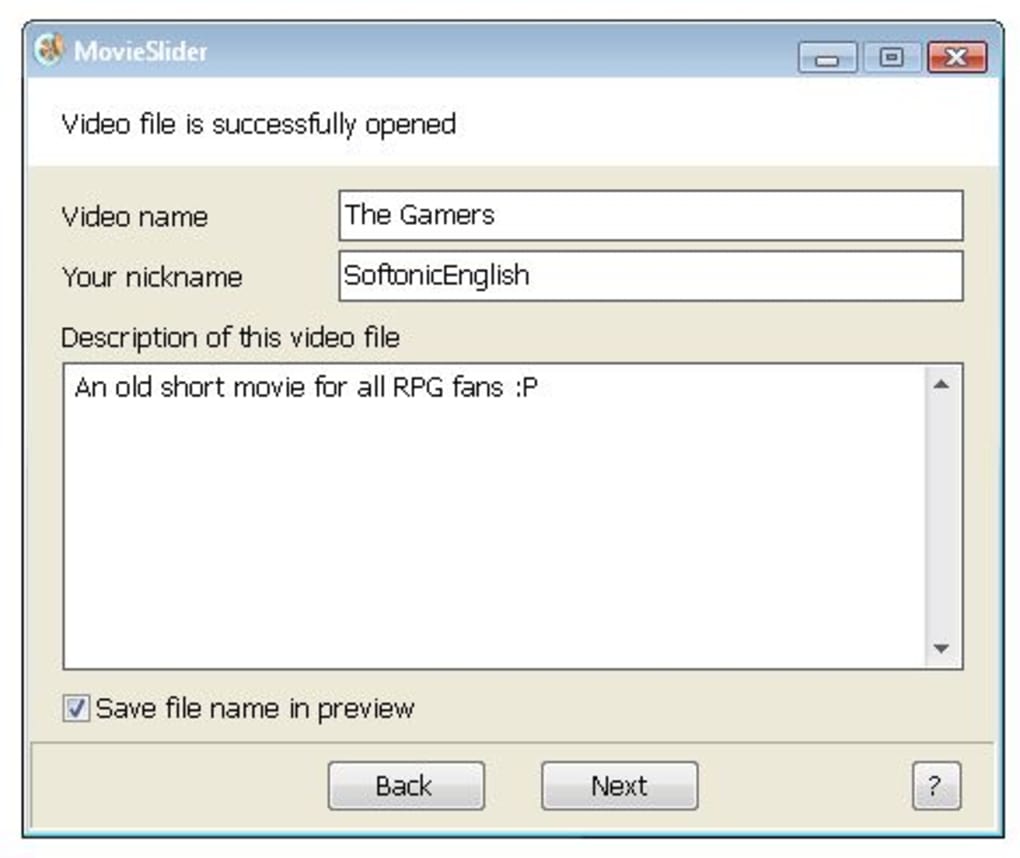
First‑time usage: Launch MovieSlider from the shortcut. The wizard opens with three main steps:
- Select source video: Click “Browse” and pick any video file. The program automatically reads the resolution and duration.
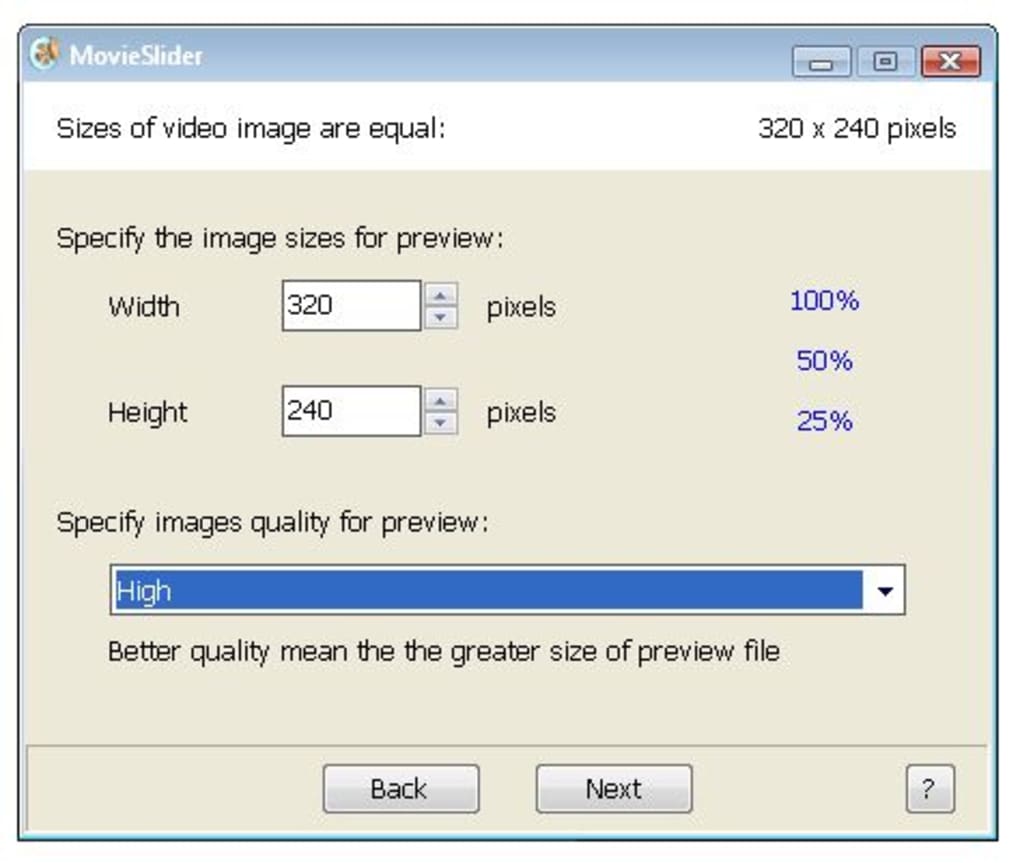
- Choose capture mode: Either specify the total number of frames you want (e.g., 20 frames) or set an interval (e.g., capture a frame every 1 minute).
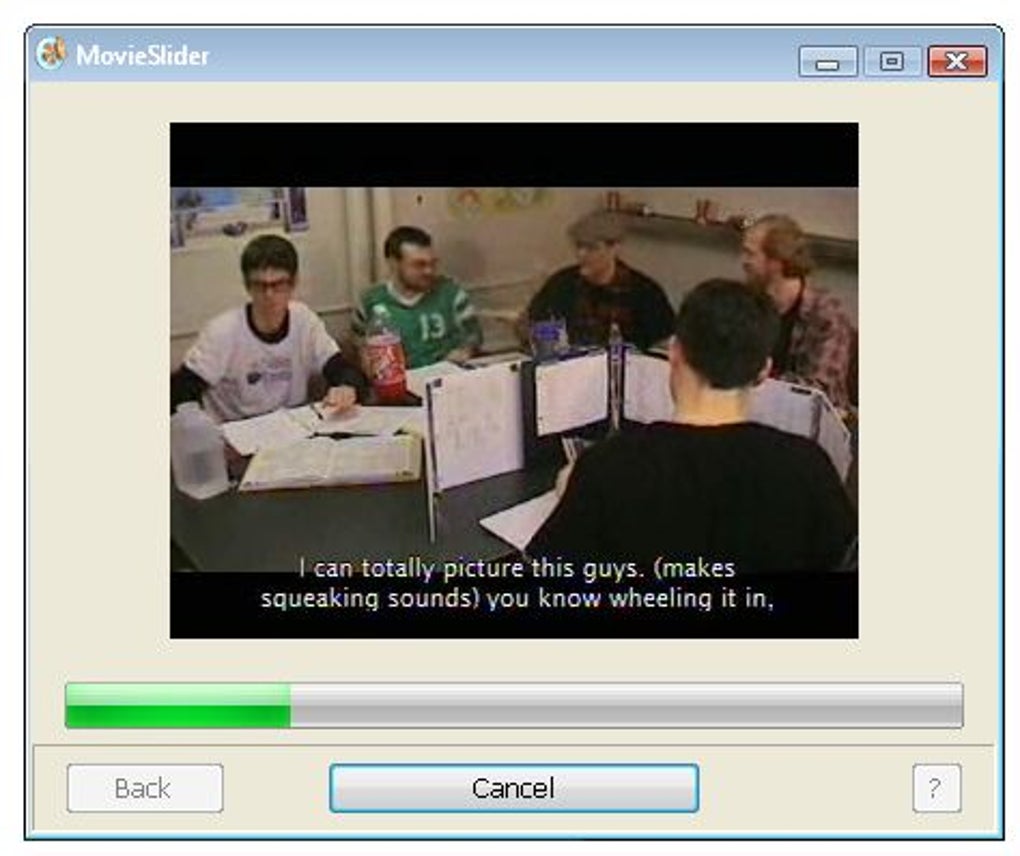
- Export options: Define the output folder, the name of the EXE, and optionally a custom thumbnail. Click “Create Slideshow” and watch the progress bar. When finished, the EXE is ready for distribution.
The entire process typically takes under 30 seconds for a 5‑minute video, thanks to the efficient frame‑extraction algorithm.
Compatibility: MovieSlider runs on Windows 7, 8, 8.1, 10, and 11 (both 32‑bit and 64‑bit). The generated EXE files are also compatible with all these versions, meaning recipients do not need to install MovieSlider to view the slideshow. The application relies on standard Windows APIs, so there are no additional runtime dependencies such as .NET Framework or Visual C++ redistributables. Currently, there is no native macOS, Linux, Android, or iOS version, but the produced EXE can be executed on Windows emulators like Wine on Linux.
Updates & security: MovieSlider checks for updates at launch over an encrypted HTTPS connection. The installer is digitally signed, ensuring the download is authentic and free from tampering. Users can also manually download the latest version from the official website if automatic checks are disabled.
Pros, Cons & Quick Verdict
Pros
- Extremely small output size saves bandwidth and storage.
- Standalone EXE works on any Windows PC without additional software.
- Intuitive wizard eliminates a steep learning curve.
- Free for both personal and commercial use.
- Fast conversion—seconds for most short videos.
- Secure download with digital signature and HTTPS update checks.
Cons
- No built‑in option to add background music or sound effects.
- Limited to Windows; no native macOS, Linux, Android, or iOS version.
- Only exports to EXE; cannot generate MP4 or GIF previews directly.
- Advanced customization (e.g., transition effects) is not available.
Verdict: MovieSlider excels at what it promises—turning large video files into compact, shareable slideshows with minimal effort. If your primary need is a quick visual summary that can be emailed or posted online without worrying about large file sizes, this free tool is a solid choice. Users who require audio, cross‑platform support, or more sophisticated editing should consider complementary software, but for straightforward video‑to‑slideshow conversion, MovieSlider delivers reliable performance.
Frequently Asked Questions
Can MovieSlider handle 4K video files?
Yes. MovieSlider reads the video resolution but only extracts frames, so the size of the original file (even 4K) does not affect the final EXE size. The conversion may take slightly longer for very large files.
Is the generated EXE safe to run on any Windows PC?
The EXE contains only image frames and a minimal viewer. It does not execute external scripts, making it safe for most environments. However, always follow your organization’s policy on running unknown executables.
Can I add custom background music to the slideshow?
MovieSlider does not currently support audio tracks. You can manually combine the EXE with a separate audio player or use video‑editing software to add sound before converting.
Is there a portable version that doesn’t require installation?
The core converter can be run as a portable ZIP file, but the official download is an installer. The generated slideshow EXE itself is already portable and runs on any Windows computer.
Will the EXE work on Windows 11 ARM devices?
Yes, the EXE is compiled for both x86 and x64, and Windows 11 on ARM uses an x86 emulation layer, allowing the slideshow to run without issues.
Conclusion & Call to Action
MovieSlider delivers a niche yet powerful capability: turning bulky video files into ultra‑lightweight, self‑contained slideshow executables that can be shared instantly. Its free price tag, secure update mechanism, and wizard‑driven workflow make it especially attractive for educators, marketers, and developers who need to give a quick visual preview without the overhead of full video hosting. While the absence of background audio and cross‑platform support may limit some advanced use‑cases, the core promise—rapid conversion and effortless sharing—holds true.
If you’re looking for a straightforward way to compress video previews and avoid the hassle of large file transfers, download MovieSlider today and start creating portable slideshows in seconds. The tool’s simplicity ensures you’ll spend more time sharing content and less time wrestling with file sizes.







